If your expert advisor is not trading, the good news is that the cause is almost never the EA itself. In most cases it is a single setting in MetaTrader 4, and you can find it in a couple of minutes. This guide walks through every common reason, starting with the fastest checks.
In this guide:
- 1. Check the smiley face
- 2. Turn on AutoTrading
- 3. Tick “Allow live trading”
- 4. Use the right chart, symbol and timeframe
- 5. Check trading hours and connection
- 6. Read the Experts and Journal tabs
- 7. Error 0: the broker blocked EA trading
- 8. Margin and lot size
- 9. Account type or investor password
- 10. Keep MT4 running (VPS)
- FAQ: expert advisor not trading
The Short Answer: Why Your Expert Advisor Is Not Trading
Check these five things in order. Together they solve the large majority of cases.
- The AutoTrading button in the toolbar is switched on.
- The chart shows a smiley face, not a sad one, next to the EA name.
- Allow live trading is ticked in the EA’s settings.
- The EA is attached to the right symbol and timeframe.
- The Experts and Journal tabs show no errors.
If all five look right and it still does nothing, keep reading. The later sections cover margin, account type, error codes and the one situation where nothing is actually wrong.
1. Check the Smiley Face First
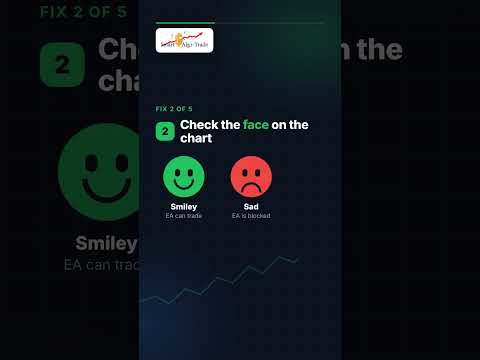
When you attach an expert advisor to a chart, MT4 shows its name in the corner of that chart with a small face next to it. That face is the quickest diagnostic you have.
- Smiley face: the EA is running and can trade.
- Sad face: the EA is running but cannot trade.
- No name at all: you have not attached the EA, or it failed to load.
A sad face almost always points to one of the next two sections. No name at all usually means the file is in the wrong folder, which our guide on how to install an expert advisor into MetaTrader 4 covers step by step.
2. The AutoTrading Button Is Off
This is the most common reason an expert advisor is not trading. The AutoTrading button in the main toolbar is a master switch for every EA in the terminal. When it is off, the button shows red and every chart shows a sad face.

Click it once to switch it on. It should turn green. However, MT4 can switch it off again by itself. By default it does this when you change account or load a different profile. So if it keeps turning off, open Tools → Options → Expert Advisors and untick the options that disable automated trading on those changes.
3. You Have Not Ticked “Allow Live Trading”
AutoTrading is the global switch. Each EA also has its own permission. Right-click the chart, choose Expert Advisors → Properties, and open the Common tab. Make sure Allow live trading is ticked.
If this box is empty, the EA runs but cannot place orders. In fact, MT4 reports exactly that in the Experts tab as error 4109. While you are there, also check the Long & Short setting. If it allows one direction only, the EA will ignore every signal in the other.
To make this the default for every EA you attach, tick Allow automated trading in Tools → Options → Expert Advisors.
4. The EA Is on the Wrong Chart, Symbol or Timeframe
Developers build most expert advisors for specific pairs and a specific timeframe. Attach one to the wrong chart and it may simply wait forever, because its conditions never occur there. If you want to run more than one EA, give each its own chart. Our guide to multiple expert advisors on one MT4 account explains how.
Watch out for symbol suffixes in particular. Many brokers name their pairs EURUSD.m, EURUSDpro or EURUSD-ECN. An EA that expects plain EURUSD may not recognise the symbol and never trade. Check the EA’s instructions for the exact chart and timeframe it expects.
5. Trading Hours Are Over or No New Tick Has Arrived
An expert advisor only runs when a new price tick arrives. So if you attach it at the weekend, or during a quiet holiday session, it will sit still until the market moves again. That is normal, not a fault.
Similarly, check that the terminal is actually connected. The connection indicator in the bottom-right corner should show traffic, not No connection or Invalid account.
6. Read the Experts and Journal Tabs
When something goes wrong, MT4 usually says so. Open the Terminal window with Ctrl+T and look at two tabs. Experts shows messages from the EA itself. Journal shows messages from the platform and the broker. Here are the codes you are most likely to see, with their meaning from the official MQL4 documentation:

| Error | Meaning | What to check |
|---|---|---|
| 0 | Broker blocks automated trading | Ask broker support to enable automated trading |
| 4109 | Trade is not allowed | Allow live trading and AutoTrading |
| 133 | Trade is disabled | Account type or investor password |
| 134 | Not enough money | Free margin and lot size |
| 131 | Invalid trade volume | Lot size below the minimum or wrong step |
| 130 | Invalid stops | Stop loss or take profit too close to price |
| 132 | Market is closed | Trading hours for that symbol |
| 146 | Trade context is busy | Too many EAs trading at once |
If you see none of these and the tabs are silent, the EA is probably running normally and simply waiting for a signal.
7. Error 0: Expert Advisor Not Trading Because the Broker Blocked It
This is the error we see most often from our own customers. The Experts or Journal tab shows the order failing with error 0, even though AutoTrading is green and the chart shows a smiley face. In this case the problem is not in MT4 at all. The broker has blocked automated trading on your account from their side.
Nothing you change in the terminal will fix it. Instead, contact your broker’s support team and ask them to enable automated trading (sometimes called EA trading) on your trading account. Give them your account number, and mention that you see error 0 when the expert advisor tries to open a trade. Once they open it, the EA usually starts trading on the next signal without any other change.
8. Not Enough Margin or the Wrong Lot Size
An expert advisor can only open a trade the account can afford. If free margin is too low, the broker rejects the order with error 134. This is common on small accounts, especially after a few losing trades have reduced the balance.
Lot size causes the other half of these problems. The minimum is usually 0.01, but some accounts use a different minimum or step. If the EA calculates a lot size below the minimum, the order fails with error 131. Our guide on how much money you need to start algo trading explains how to size an account so this does not happen.
9. Your Account Type or Password Is Blocking Trades
This one catches many people out. MT4 accounts have two passwords. The master password allows trading. The investor password is read-only: you can see the account, but nothing can trade on it. If you logged in with the investor password, every order fails with error 133.
Therefore, if error 133 appears, log out and log in again with the master password your broker sent you. Also confirm with your broker that your account type permits automated trading.
10. Your Computer Went to Sleep
An expert advisor only works while MT4 is open and connected. If your computer sleeps, shuts down or loses internet, the EA stops. Nothing on the broker’s side keeps it running.
That is why most traders who run EAs full-time use a low-cost VPS, a remote computer that stays online around the clock. We explain why “passive” still needs this kind of setup in algo trading passive income for beginners.
Can an Expert Advisor Run on the MT4 Mobile App?
No. The MetaTrader 4 apps for Android and iPhone do not run expert advisors at all. You can watch trades an EA has opened, but the EA itself must run on the desktop terminal or a VPS. If you installed an EA and only use the phone app, that alone explains why nothing is happening.
When the Expert Advisor Is Working but Just Not Trading
Sometimes nothing is wrong. You have a smiley face, AutoTrading is green, and the tabs are clean. The EA is simply waiting for its conditions. Some strategies trade several times a day. Others wait days for the right setup.
Before you change anything, check the EA’s own description for how often it normally trades. Then compare with its history. Our walkthrough of how to read an MT4 backtest report shows how to see the trade count and frequency in a test, so you know what “normal” looks like.
If the EA hardly trades even in its own backtest, or the results look too good to be true, the issue may be the strategy rather than your settings. Our articles on why most expert advisors fail and how to spot a scam expert advisor explain what to look for. If you would rather start with a tested robot, see our MT4 expert advisor.
Prefer the 30-second version? Here are the 5 quickest fixes as a YouTube Short:

Frequently Asked Questions
In most cases a setting is blocking it. Check that the AutoTrading button is green, the chart shows a smiley face next to the EA name, Allow live trading is ticked in the EA properties, and the EA is attached to the right symbol and timeframe. Then look in the Experts and Journal tabs for error codes.
A sad face means the expert advisor is loaded but is not allowed to trade. Switch on AutoTrading in the toolbar and tick Allow live trading in the Common tab of the EA properties.
Error 0 usually means the broker has blocked automated trading on your account. Nothing in MT4 will fix it. Contact your broker’s support, give them your account number and ask them to enable EA trading.
No. The MetaTrader 4 apps for Android and iPhone cannot run expert advisors. The EA must run on the desktop terminal or on a VPS. The mobile app can only show the trades it opens.
No. The EA only works while MT4 is open and connected to the internet. To trade around the clock, run MT4 on a VPS, a remote computer that stays online 24/7.
Final Thoughts on Fixing an Expert Advisor That Is Not Trading
An expert advisor that is not trading is frustrating, but it is rarely broken. Work through the checks in order: AutoTrading, the smiley face, Allow live trading, the chart, then the Experts and Journal tabs. Most problems end in the first two minutes.
If you are running our Free FX Robot and still stuck after all of this, our support desk can look at it with you. Send a screenshot of the chart and the Experts tab, and we can usually spot the cause straight away.
Want an EA That Works Out of the Box?
Many “EA not trading” issues come down to broker settings — symbol suffixes, lot limits or disabled AutoTrading. Our robot is set up and tested on our partner broker’s accounts, so it trades from day one. Open an account with our partner broker below, fund it, and email us your account number: we’ll send you the Free FX Robot with a full one-year license at no charge. See the full step-by-step process and broker bonus details here.
Trading Forex and CFDs involves significant risk of loss. We may receive a commission if you open an account through these links.